Camera setup for video therapy visits.
A free guide to send patients before a video visit, so you can see the whole movement and measure it. Includes a printable one-page handout.
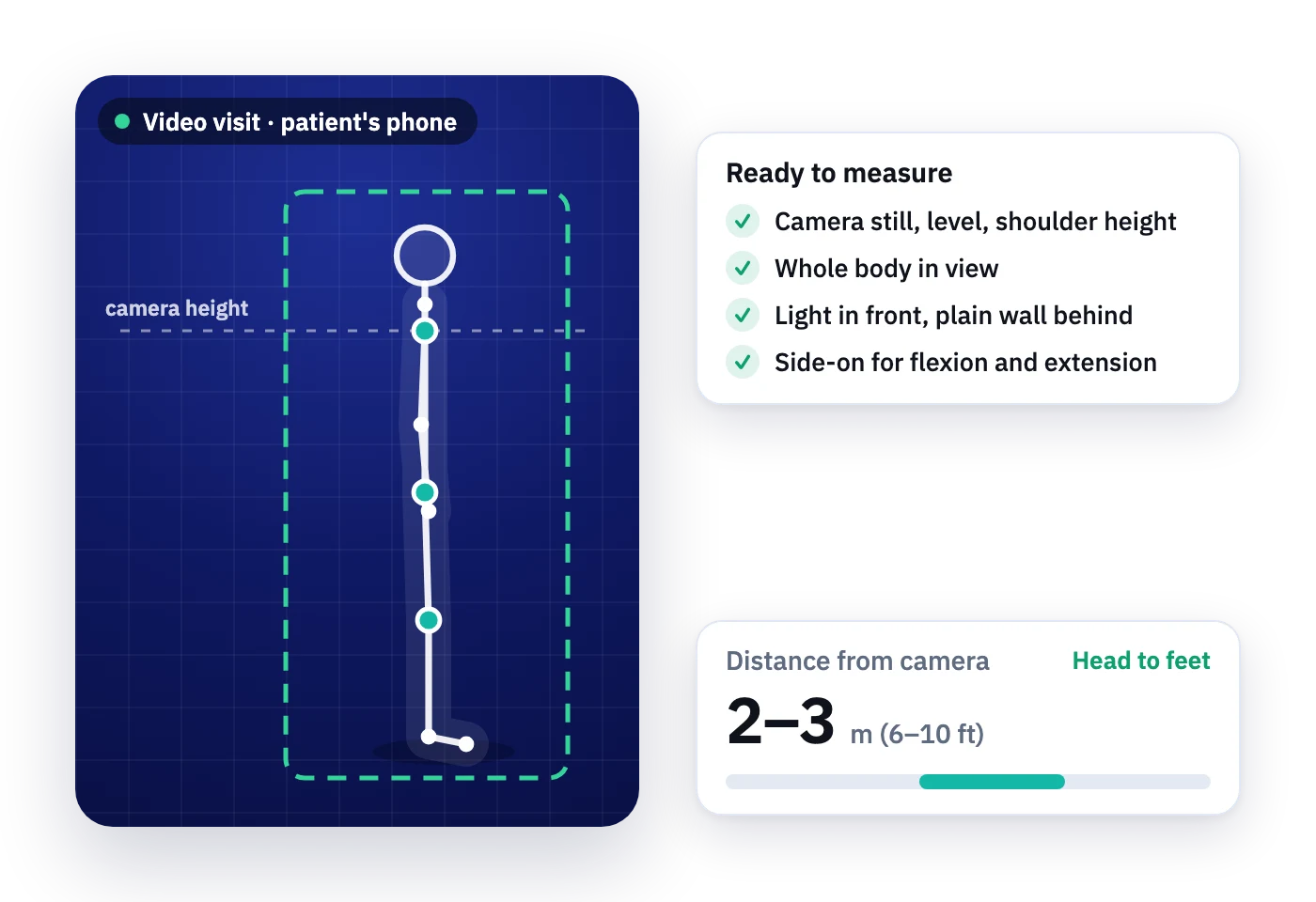
You can't measure what the camera can't see. A minute of setup before a video visit is the difference between eyeballing a movement and getting a number you can chart. Send this guide to patients before their first video visit, or walk through it together at the start of the call.
Getting ready for your video therapy visit
Written for patients. Copy it into your welcome email or send the printable version below.
-
Charge your device and check your connection
A phone, tablet or laptop with a camera all work. Plug it in or charge it first, and sit close to your Wi-Fi router if you can. Close other apps so the video stays smooth.
-
Prop the camera up so it stays still
Lean it on a shelf, stack of books or a stand. Don't hold it. For movements while standing, set the camera at about shoulder height. For knees and ankles, or movements lying down, your therapist may ask you to lower it to the level of the joint.
-
Step back until your whole body fits
Your therapist needs to see you from head to feet, with your arms raised, and a little space around you. That's usually about 2 to 3 meters (6 to 10 feet) from the camera. They may ask you to come closer when they look at one joint.
-
Hold the camera level and pick the right way round
Keep the camera straight, not tilted up or down. Use it upright (portrait) for standing movements and sideways (landscape) for movements lying down. Your therapist will tell you if they need it the other way.
-
Put the light in front of you
Have a lamp or window in front of you, ideally a little above the camera. A bright window behind you turns you into a silhouette.
-
Use a plain background
A plain wall or door behind you works best. Move clutter and anything that moves, like a TV, out of view.
-
Wear clothes that show the joint
Choose fitted, plain clothes in a color that stands out from the wall. Avoid stripes and busy patterns. Wear a tank top or sports top for shoulders, and shorts for hips, knees and ankles, with shoes and socks off.
-
Make the space safe
Clear about 2 meters of floor and move rugs, cords and anything you could trip on. If your therapist wants to watch you walk, clear 3 to 4.5 meters (10 to 15 feet). Keep a sturdy chair or counter nearby to hold onto. If your balance isn't steady, have someone at home with you. Stop and tell your therapist if anything hurts.
During the visit
- When your therapist asks, face the camera, face away, or turn sideways so it sees you from the side.
- Move slowly, and hold the end of each movement for a moment so it can be measured.
- Leave the camera where it is. If it gets bumped, put it back in the same spot.
Why camera setup matters for measurement
Angles read from video are only as good as the view. The same rules apply whether you are estimating by eye, using a photo goniometer or measuring with software.
Square to the movement
A single camera measures well only the movement that happens square to it: side-on for flexion and extension, front-on for abduction. Rotations and movement toward the camera are less reliable, and an oblique view makes angles look smaller or larger than they are.
Level with the joint
A camera tilted up or down distorts vertical lines and shifts the reading. Start at about shoulder height for whole-body views, then ask the patient to lower the device, not tilt it, for the knee and ankle.
Whole segments in frame
You need both segments either side of the joint, from landmark to landmark. Too close and a segment is cut off. Too far and landmarks are a few pixels wide.
Same setup every visit
Progress is only real if the view is comparable. Note where the camera sits and ask the patient to use the same spot each time. Watch for the trunk helping, which inflates shoulder numbers on video as it does in person.
MotionArc measures range of motion and movement during the visit, in the video tool you already use. Your patient just needs a camera.
Video measurement can be close to hand goniometry when the setup is right: in one study, shoulder angles measured over a video call came within 0.2° to 5° of goniometer readings on average.
Sources
- van den Hoorn W, et al. Sensors. 2025;25:667 (camera setup for video-based range of motion measurement, Table 2). Link
- Cottrell MA, Russell TG. Telehealth for musculoskeletal physiotherapy. Musculoskelet Sci Pract. 2020;48:102193. Link
- Laskowski ER, et al. The telemedicine musculoskeletal examination. Mayo Clin Proc. 2020. Link
- Hansen et al. HSS Journal. 2021 (virtual musculoskeletal examination). Link
- Sahu et al. J Shoulder Elbow Surg. 2022;31:201 (shoulder range of motion by video conference versus goniometer). Link
Measure range of motion live on the call.
Works with the video tool you already use. Your patient just needs a camera.
Video visit questions
Straight answers. If yours is not here, request access and ask us anything.
The PDF has blank spaces for the visit time, your name, the video link and your own notes. If you need a version with your clinic name on it, ask us.
Either works. A phone is easier to prop at the right height and distance. A laptop is steadier but harder to place low enough for lying or seated movements.
No. You measure range of motion live during the call, in the video tool you already use. Your patient just needs a camera.
These resources are free to use. MotionArc itself is in early access: pricing is simple and usage-based, and early access includes a free usage allowance so you can try it on real work.
The goniometer on this site runs in your browser and never uploads photos. In MotionArc, clinicians sign a business associate agreement (BAA) with us before any real patient data is entered.
Request early access
Tell us a bit about your work. We review every request personally and set you up ourselves.